Tutorials • Dev
Loading a database in the Virtualmin administration panel
In this article, we will present the necessary steps to upload a database in the Virtualmin administration panel.
7
Views 1565Updated 1 anPublished on 29/01/2020by Sebastian S.
Introduction
- In this article, we will present the necessary steps to upload a database in the Virtualmin administration panel.
Requirements
- Access to the Virtualmin control panel, username and password.
- Database we want to upload to the server (generally a file with the .sql extension).
Steps
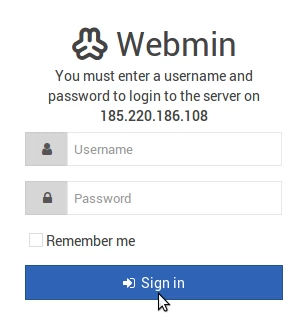
- First, we will log in to the administration panel
- Once logged in to the control panel, we will click on Edit Databases

- Click on Manage on the right side of the database onto which we want to upload the file.

- Click on Execute SQL

- After that, we will click on Run SQL from file at the top
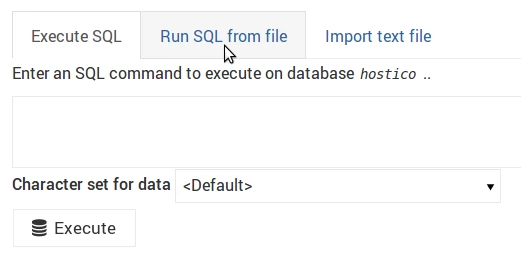
- On the next page, we will check From Uploaded File, we will click on the paperclip icon, we will upload the file, and we will click on Execute.

- If the upload was successful, we will be greeted by a message similar to the one in the image below.

- If there are errors in the SQL commands from the uploaded file, they will be displayed on the screen.
