Tutorials • Commercial
Preparation of contracts and requests provided by Hostico.
In this tutorial, the necessary steps for signing contracts/applications provided by Hostico will be presented.
1
Views 1507Updated 3 aniPublished on 22/10/2018by Mark D.
Introduction
This tutorial will illustrate the steps necessary for the preparation and signing of the contracts/applications provided by Hostico;
Requirements
- A valid email address;
- Necessary documents for completing contracts;
- Smart mobile device (optional);
Steps
- The first step in the preparation and signing of the contracts is to notify the commercial department regarding the desired contract (at the address office@hostico.com) and providing the necessary documents;
- In the case of individuals, regardless of which contract we are talking about, it will be necessary to provide the identity document of the rightful owner in the Hostico customer account;
- For legal entities, in addition to the representative's identity document, it will be necessary to provide a copy of the registration certificate in the company's trade register;
- At the moment, we offer 5 types of documents to clients:
- Web Hosting Service Contract;
- Affiliate Agreement;
- Statement of Own Responsibility Regarding Affiliate Income;
- Request for Assignment/Acceptance of Services;
- Request for Client Account Deletion; - Each of the presented documents above will be drafted strictly at the client's request and only once the necessary documents have been provided.
- As soon as the document has been prepared it will automatically send an email (from the Awesome Projects no-reply@dochub.com) with the subject: ACTION NEEDED: CONTRACT NAME to the address related to the client account. This email will look like this:
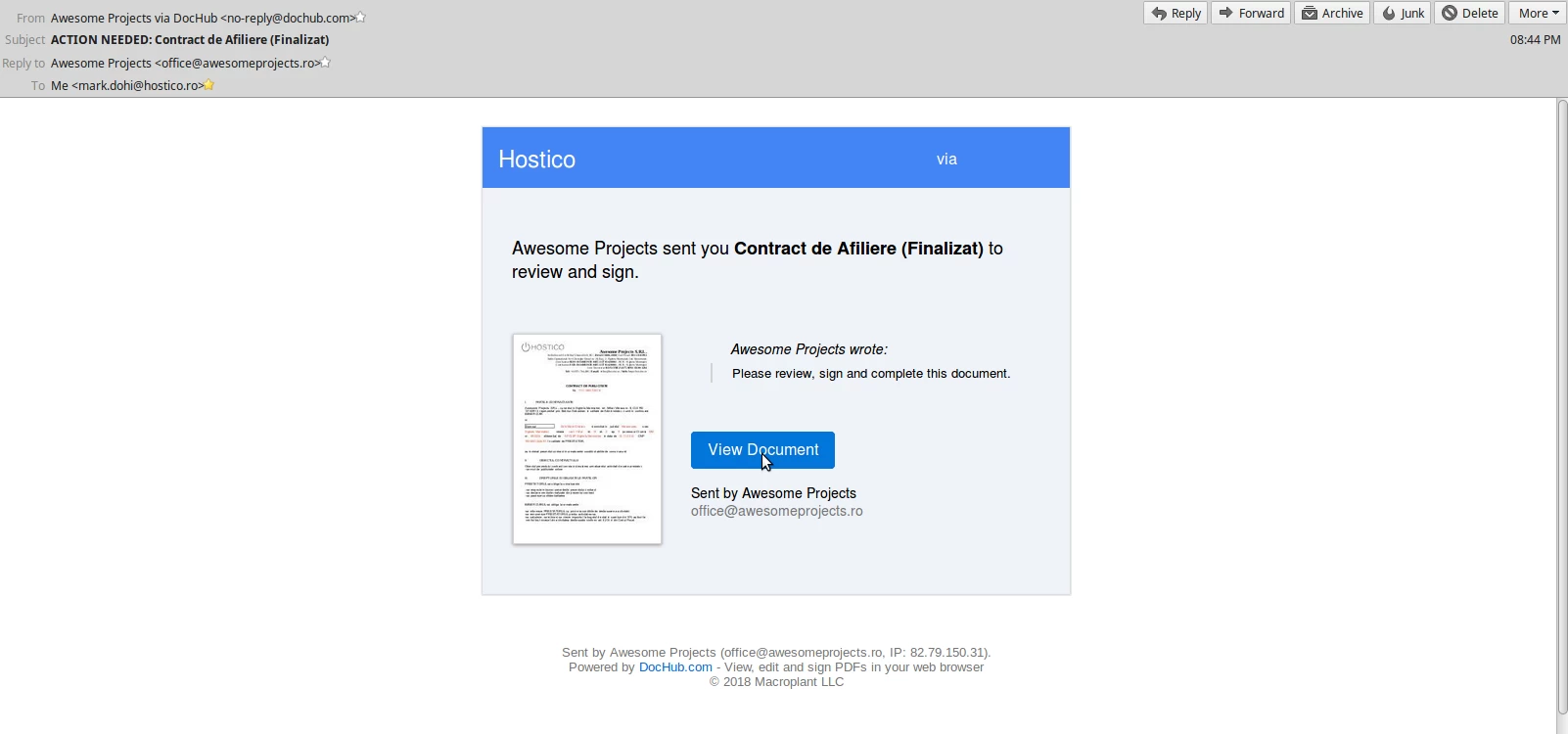
- We ask you to ensure that at the time when you access the email that it is the one presented earlier. Hostico does not assume responsibility in case you access fraudulent links, and personal information reaches undesirable hands!
- After you have identified the email in question, you will need to click on the button View Document
- A will open a page in which will show a message in the form of a banner. To proceed to the contract signing, you will need to check I agree to use electronic records and signatures. After checking the checkbox, you will click on Let's Do This!
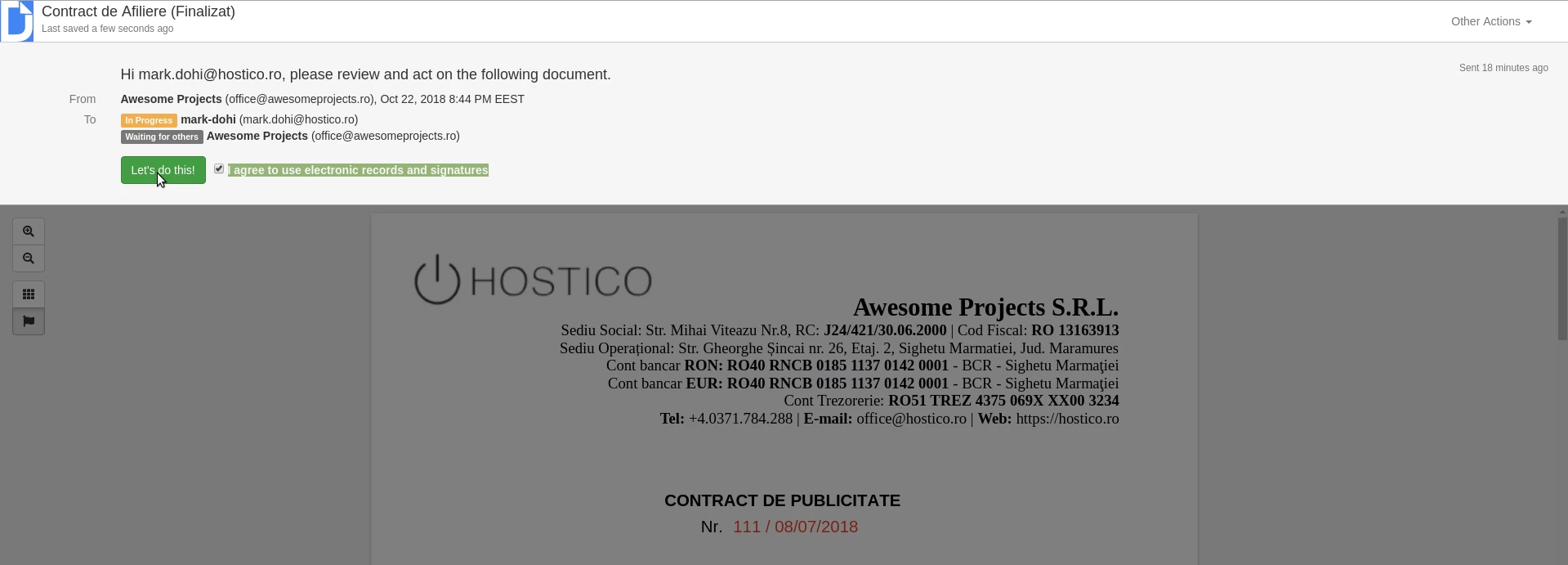
- After the previous step has been completed, you will be able to view the contract for signing it. This will be done from the bottom of the page by accessing the button Sign Here.

- A window will be displayed in which you have four signing options:
- Via mobile phone;
- "Drawing" type signature;
- Uploading an image-type signature,
- By typing;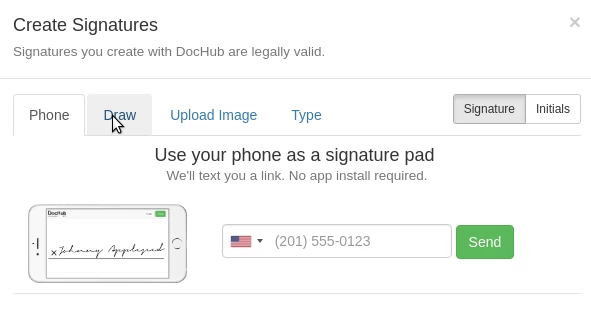
- For this example, I chose the "draw" method. Once you are satisfied with the signature created, click on SAVE in the lower right corner of the page.
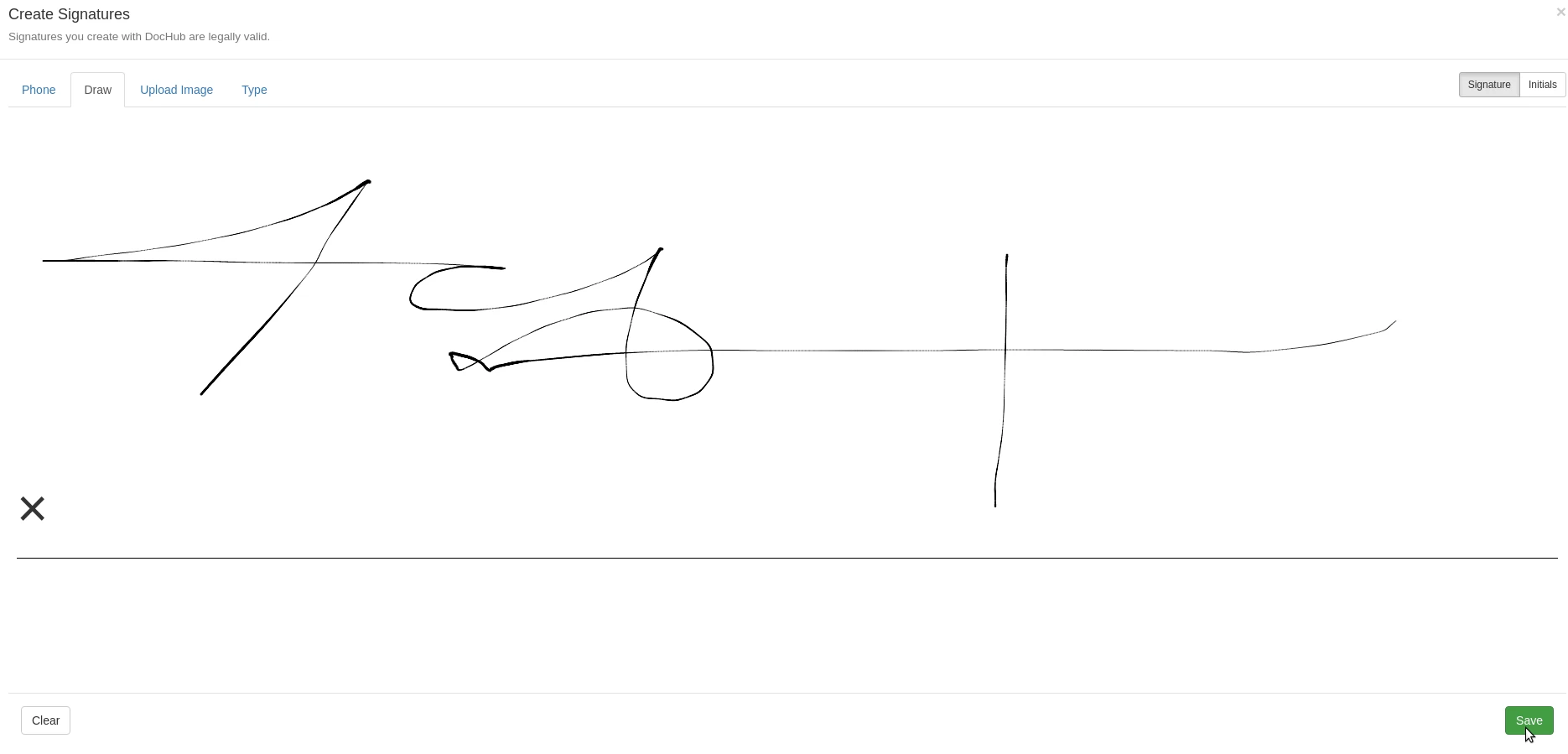
- The penultimate step consists of completing the procedure by clicking the green button Finalize.

- A window will open a small window in which text can be entered, but this step is optional, after which the Finalize Document will be accessed
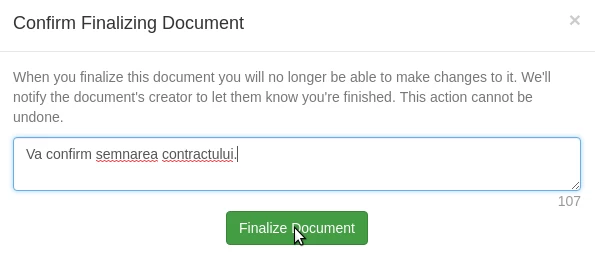
- If the process was successful, a confirmation message will be displayed.

- Subsequently, this signature, the document will be signed also by and for Hostico. After both parties have successfully signed, the document will be sent via email, which will be available for download in PDF format.

Note
- The documents will be signed by Hostico and sent only after the client signs in the designated place;
- The validity of unsigned contracts is 30 days. If the contracts are not signed by both parties within 30 days, it will be automatically canceled, and the received link will become non-functional;
- In the case of service transfer requests from one client account to another, it will be necessary to provide documents to both parties (both the one who transfers as well as the one who receives the services), and the signing will take place in the following order: Transferor -> Beneficiary -> Hostico. If the transferor has not signed, it will not be possible to proceed to the next step.
- În the case of account deletion requests, the applicant is the only one who will sign.