Tutorials • Webuzo
Changing the password of an FTP account in the Webuzo admin panel
Learn how to change the password of an FTP account in the Webuzo administration panel, with simple steps for efficient access and updating.
Views 893Updated 17 orePublished on 21/09/2020by Florin P.
⚠️ Note: This article contains outdated or no longer relevant information. Certain instructions, commands, or configurations may no longer work correctly. For updated solutions, check the recent documentation or contact the support team.
Introduce
- In this tutorial, we will show you how to change the password of an FTP account in the Webuzo control panel.
Requirements
- Access to the Webuzo control panel, username and password.
Steps
- We log in to the Webuzo control panel, and then go to the Manage FTP section.
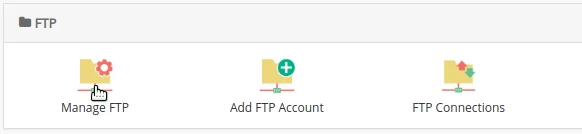
- Click on Manage FTP, and then on the page that opens click on the key symbol to change the password. Here we can generate a new password or add a predefined one.

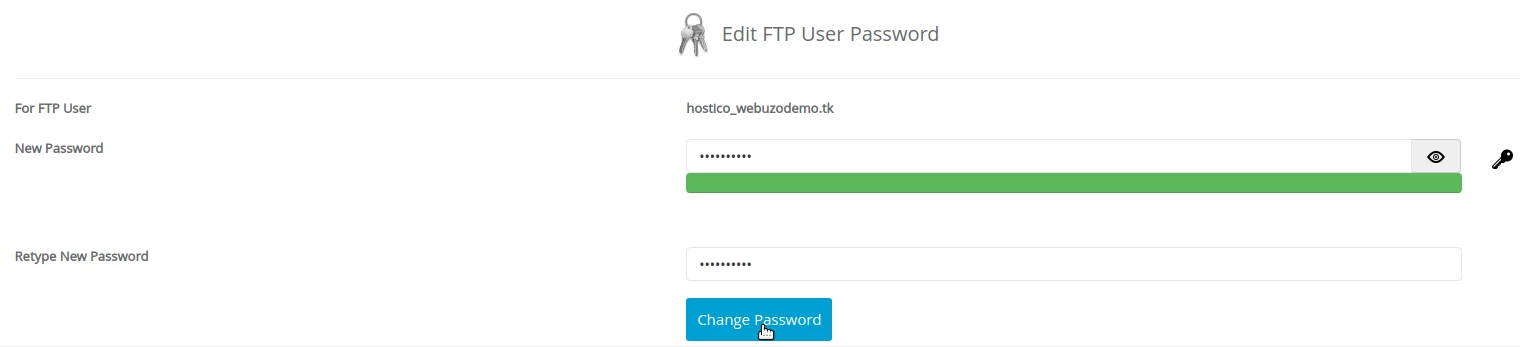
- After generating or adding a predetermined password, we will save the changes using the Change Password button.
