Tutorials • cPanel
Bandwidth cPanel
In this tutorial, we will show you how to view bandwidth information. The bandwidth interface displays consumption information in the form of graphs and for a specific period of time.
Views 931Updated 2 aniPublished on 26/09/2018by Florin P.
Introduction
- In this tutorial, we will show you how to view bandwidth information. The bandwidth interface displays consumption information in the form of graphs and for a specific period of time.
Requirements
- Access to the cPanel account, username and password.
Steps
- After logging into the cPanel account, we will go to the Metrics section, and then click on Bandwidth.

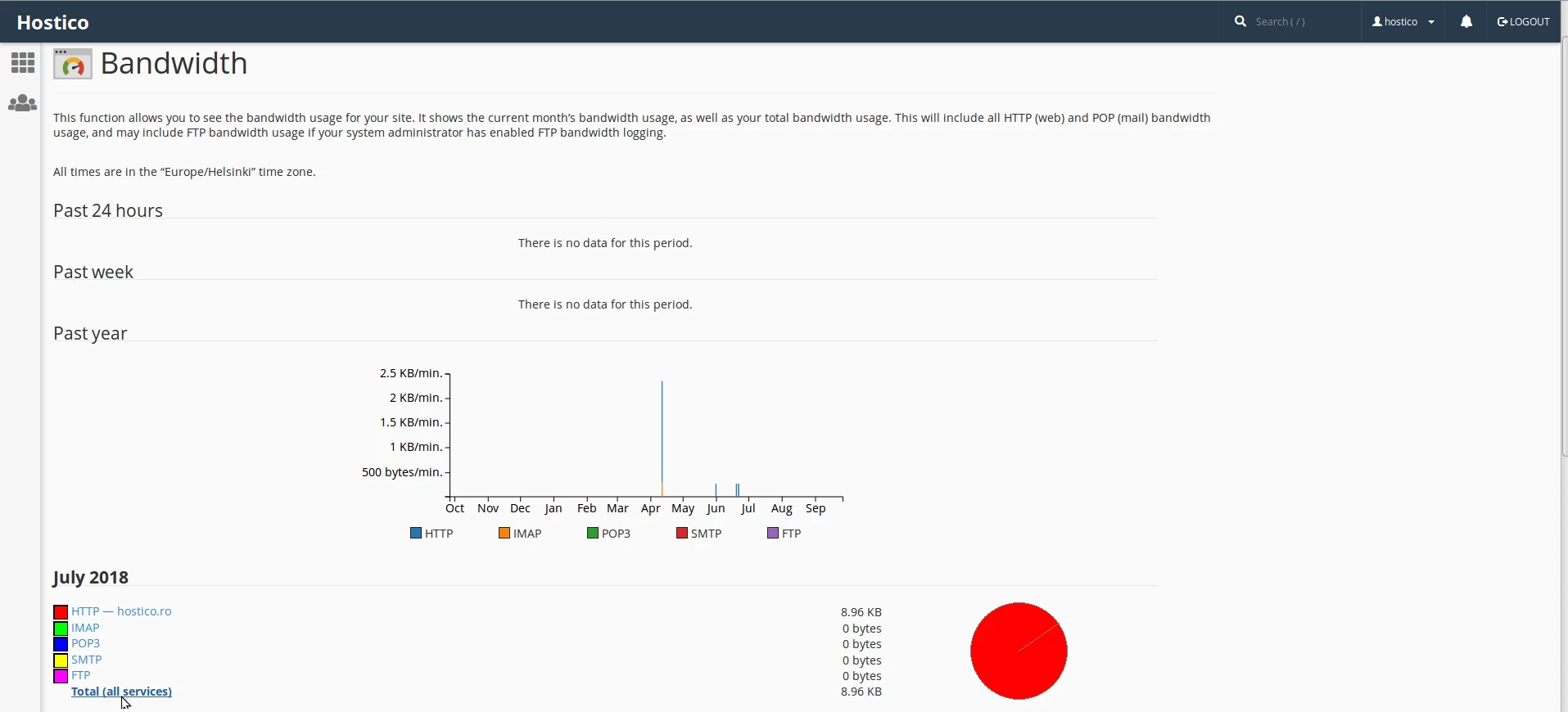
- On the next page, we are shown information about consumption (bandwidth) in the form of graphs and for a specific period of time.
The charts display information about:
- HTTP — web traffic.
- POP3 — received emails.
- IMAP — received emails.
- FTP — file transfer.
- SMTP — sent emails.
- Total - all services.
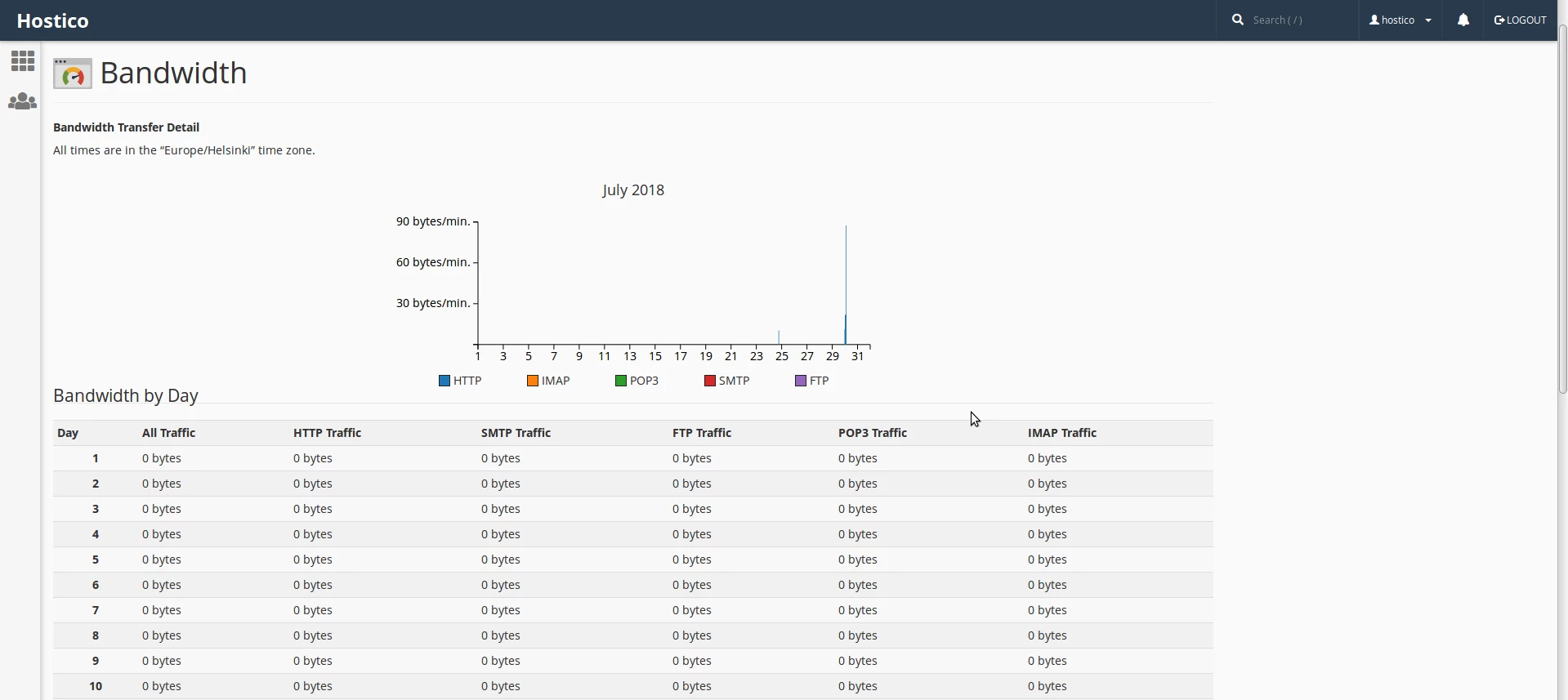
- To view the graphs, we will click on Total (all services).