Tutorials • Webuzo
Domain Management in the Webuzo panel
Learn how to manage additional domains in the Webuzo panel. The tutorial covers the steps for editing, deleting, and adding domains and subdomains.
4
Views 1676Updated 17 orePublished on 14/09/2017by Alexandru R.
⚠️ Note: This article contains outdated or no longer relevant information. Certain instructions, commands, or configurations may no longer work correctly. For updated solutions, check the recent documentation or contact the support team.
Introduction
- In this tutorial we will present how to manage or modify additional domains in the Webuzo control panel.
Requirements
- a Webuzo account
Steps
- After logging in to the Webuzo admin panel, we will go to the Domain section and click on Manage Domains.

- After accessing "Manage Domains", we will find the complete list of domains displayed. From this window, domains and subdomains can be edited, deleted, or even added.
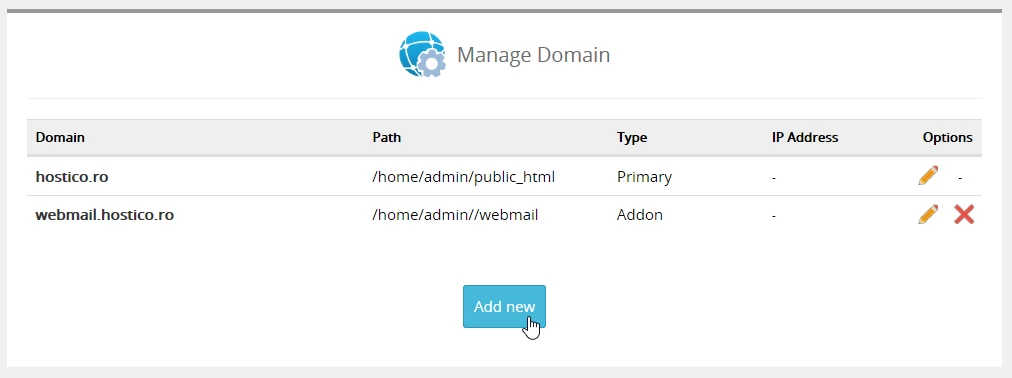
To edit or delete a domain in the webuzo panel, we will use the icons on the right (the pencil and X),
- The Pencil icon will be used to edit the added/existing domain or subdomain.
- The icon X will be used to completely delete the domain or subdomain.
- To add a domain or subdomain, we will use the Add new button which will open the Add New Domain window.
