Tutorials • Webuzo
Accessing and uploading a file using the File manager in the Webuzo admin panel.
In this tutorial, we will show how to access the File manager and upload a file using it in the Webuzo panel.
Views 1122Updated 11 orePublished on 17/08/2017by Florin P.
⚠️ Note: This article contains outdated or no longer relevant information. Certain instructions, commands, or configurations may no longer work correctly. For updated solutions, check the recent documentation or contact the support team.
Introduction
- In this tutorial, we will show you how to access the File manager and upload a file using it in the Webuzo panel.
Requirements
- a Webuzo account
Steps
- After logging in to Webuzo, we will go to the Server Utilities section and click on File manager.

- We are immediately redirected to the File manager login page, and to log in we will use the username admin and the password configured for the File manager by us.
- Under the password field, we can choose the language in which we want the File manager interface to be displayed, Romanian in our case.
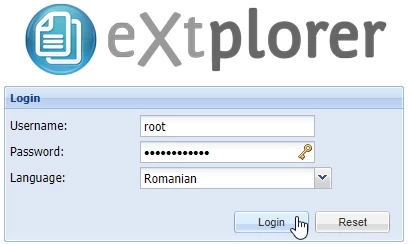
- Then we will click on Login and the File manager interface will open.

- To upload the file index.php to the public_html directory, we will double-click the public_html directory and then click the Upload button.
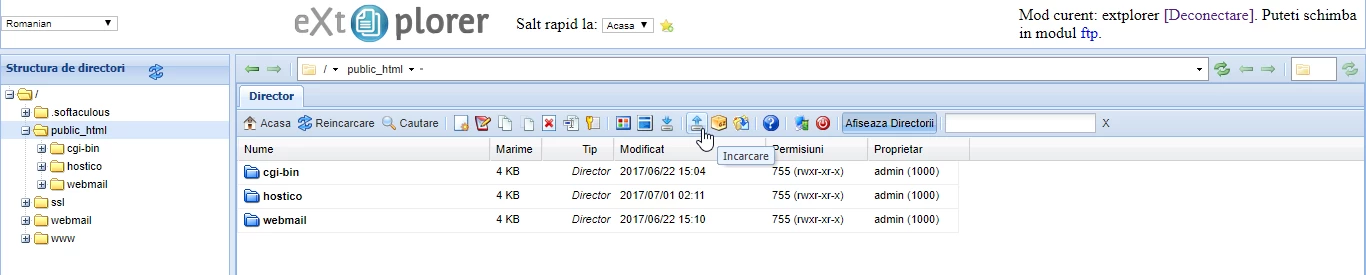
- In the next window, we will click on Browse next to File 1: to select the file we want to upload, index.php in our case.
- We have the ability to upload multiple files, overwrite the file/files if we check the box below Overwrite existing file(s).

- The operation will be completed by clicking the Save button.
