Tutorials • Webuzo
Blocking one or more IP addresses in the Webuzo panel
In this article we will go through the necessary steps to block access to the server from one or more IP addresses.
2
Views 1246Updated 16 orePublished on 02/06/2018by Alexandru R.
⚠️ Note: This article contains outdated or no longer relevant information. Certain instructions, commands, or configurations may no longer work correctly. For updated solutions, check the recent documentation or contact the support team.
Introduction
- In this tutorial we will show the necessary steps for blocking server access from one or more IP addresses.
Requirements
- a Webuzo account
Steps
- The necessary steps to block server access by one or more IPs are as follows:
1. We access the Webuzo panel and go to the IP Block section.

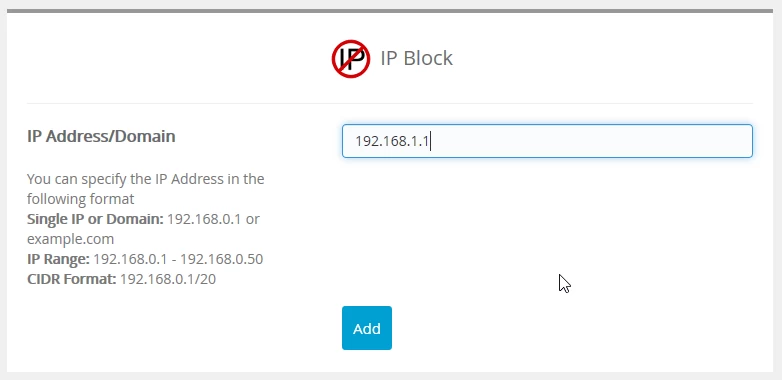
After accessing "IP Block", the window below will open:
2. We enter the IP address or the domain name that we want to block in the IP Address/Domain field, after which we press the ADD button.
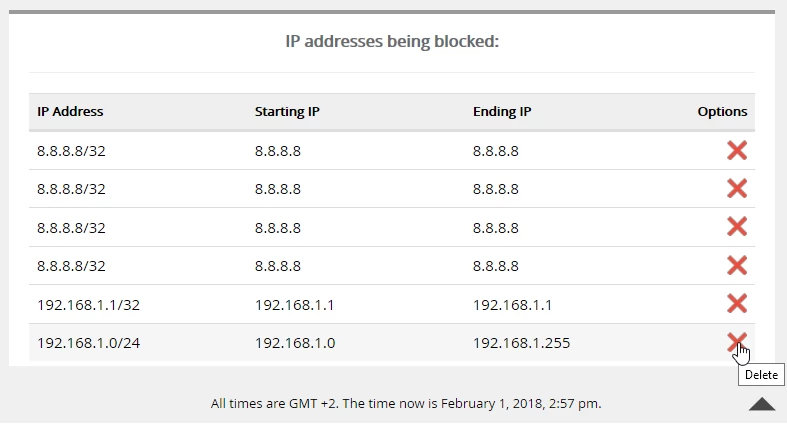
3. The added/blocked IPs on the server will be displayed below, from where they can be managed and also deleted using the icon X