Tutorials • Dev
Adding the email autoresponder in the Webuzo control panel
Learn how to set up an automatic reply message in the Webuzo control panel, ideal for holiday or absence periods. Follow the simple steps!
Views 903Updated 1 zilePublished on 16/07/2021by Eduard K.
⚠️ Note: This article contains outdated or no longer relevant information. Certain instructions, commands, or configurations may no longer work correctly. For updated solutions, check the recent documentation or contact the support team.
Introduction
This article will explain the steps that need to be followed to set up an auto-reply message. This can be useful if you are on vacation or unavailable or if you have a generic message that you want to send from a support email address.
Requirements
- Access to the Webuzo account, username and password.
- An email address on that Webuzo account
Steps
- We authenticate în the control panel with the relevant account information.

- After logging into the Webuzo control panel, in the EMAIL section, we will access Autoresponders.

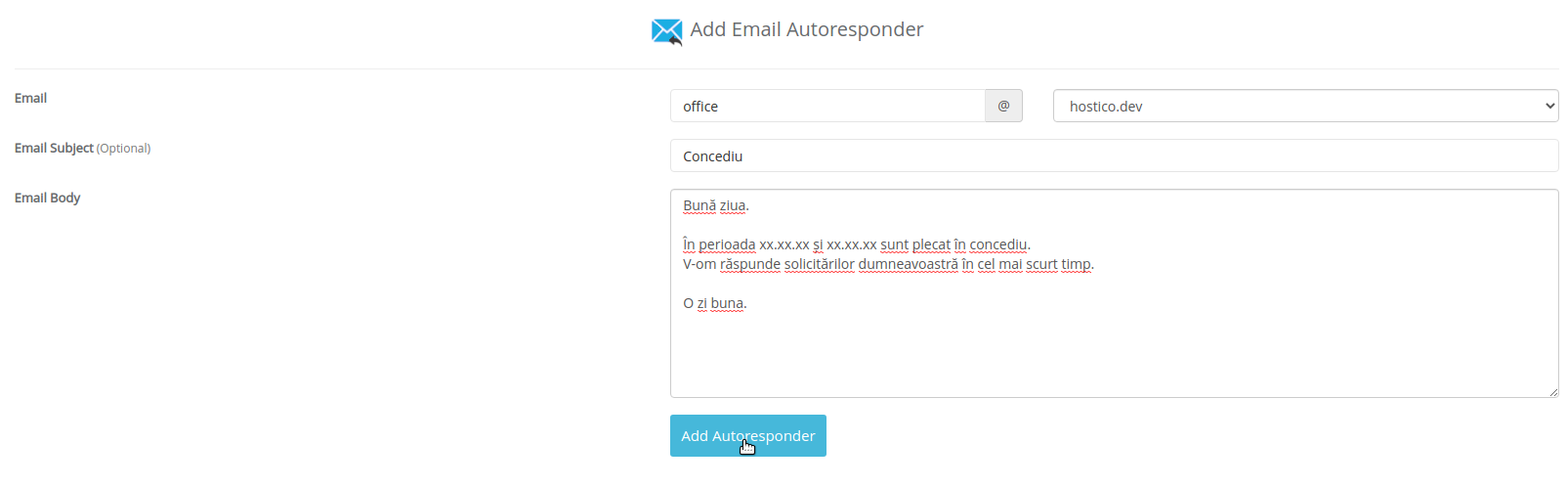
- In the next window, we will have several fields to fill out as follows:
- EMAIL-Mailbox for which we want to set the autoresponder
- EMAIL SUBJECT-Sthe subject of the message
- EMAIL BODY-Message content