Tutorials • Webuzo
Accessing a database through phpMyAdmin in the Webuzo panel
Access the database via phpMyAdmin in Webuzo: log in, enter the username and password, then select the desired database for viewing.
Views 1036Updated 15 orePublished on 14/02/2020by Cătălin A.
⚠️ Note: This article contains outdated or no longer relevant information. Certain instructions, commands, or configurations may no longer work correctly. For updated solutions, check the recent documentation or contact the support team.
Introduction
- Webuzo has the PhpMyAdmin application pre-installed in the panel. This application allows us to graphically view the database.
Requirements
- Access in the Webuzo administration panel.
- The username and password for the database to which access is desired.
Steps to Follow
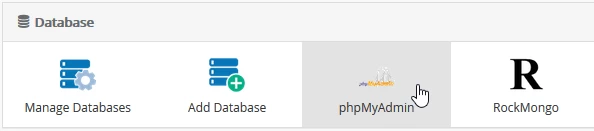
- Once logged into the Webuzo admin panel, look for the "Database" section in the displayed window and select "phpMyAdmin" from there
- In the page that will open, a window will appear where the user and the password of the database they wish to access will be entered, after which the "Go" button is pressed.
- The username and password are obtained when creating the database or from the site's configuration file associated with this database.

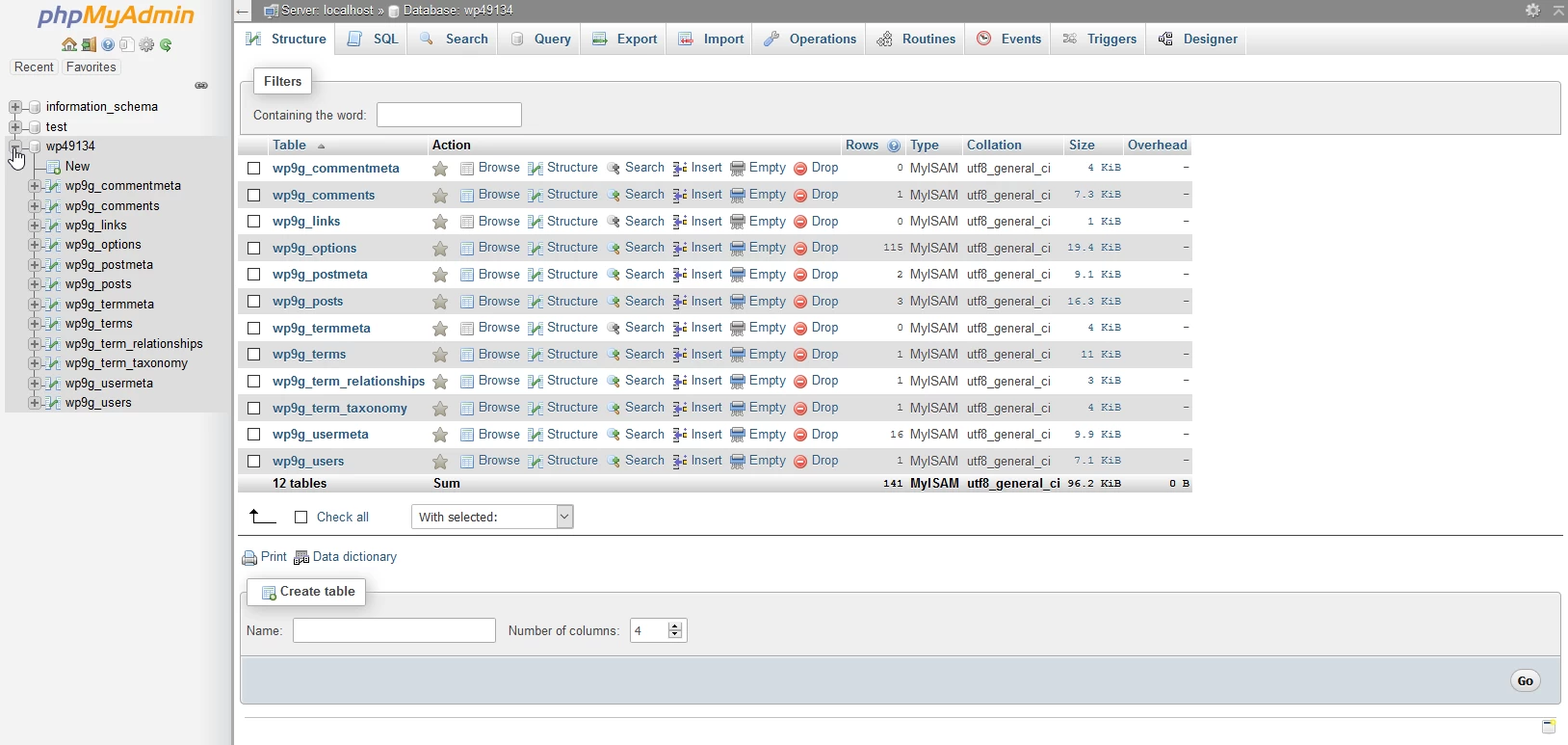
- In the window that will be displayed, select the database to which the connection was made in order to view its structure